
A calendar export is only the first step. Moving from Google Calendar to scheduling software means bringing over the calendar data you need, then setting up availability, calendar sync, reminders, and booking changes in the new system. The goal is to move beyond recording appointments and create a b...

A calendar export is only the first step. Moving from Google Calendar to scheduling software means bringing over the calendar data you need, then setting up availability, calendar sync, reminders, and booking changes in the new system. The goal is to move beyond recording appointments and create a booking process that works for your studio.
If you’re used to managing your schedule in Google Calendar, a clear, low-stress transition matters. You need to know what to export, how to avoid scheduling conflicts, and what to configure before clients start booking.
This guide walks you through the move, from exporting calendar data to testing your setup. You’ll learn how to carry forward relevant events, connect calendars, set client booking availability, and handle confirmations, rescheduling, and cancellations. Work through the steps in order to get a clearer view of your schedule and avoid preventable conflicts.
• Decide which calendar events you need to carry over, then export the relevant data before setting up your new booking process.
• Define bookable hours and availability rules so clients can choose suitable times without creating avoidable conflicts.
• Connect your calendars and review how busy times affect availability before opening bookings.
• Set up booking confirmations, reminders, and clear steps for rescheduling or cancellations to keep clients informed.
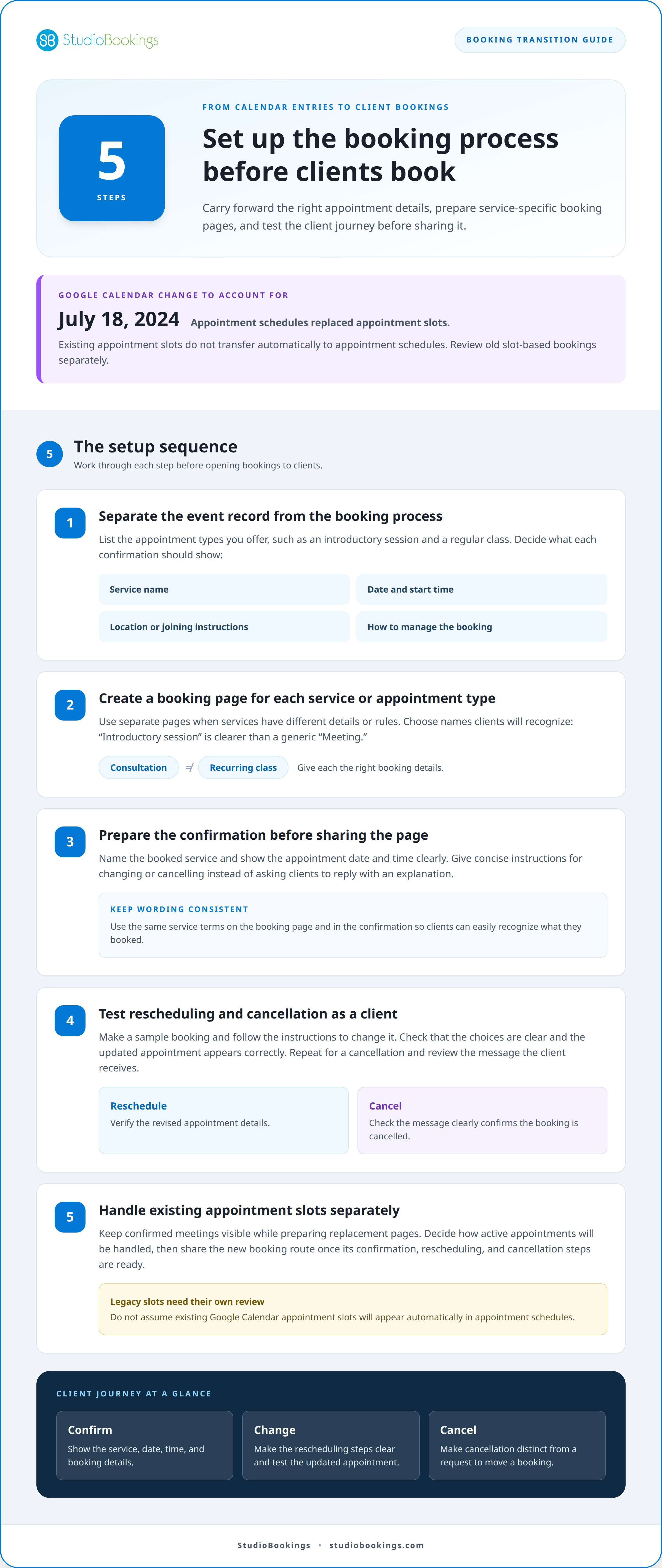
• Google Calendar appointment schedules replaced appointment slots starting July 18, 2024, and existing appointment slots don’t transfer automatically, so account for them during the transition.
• Start by separating the event record from the booking process. Google Calendar entries show scheduled meetings, but clients also need clear instructions for confirming, changing, or cancelling a booking. List the appointment types you offer, such as an introductory session and a regular class. Then decide which details each confirmation should include: service name, date, start time, location or joining instructions, and a way to manage the booking. Use this list as a checklist when configuring the new system.
• Create a booking page for each service or appointment type with different rules. Google Calendar appointment schedules can support multiple booking pages for different services or appointment types. For example, separate pages can distinguish a consultation from a recurring class, so clients see the right details when booking. Use names they’ll recognize. “Introductory session” is clearer than a generic “Meeting” label.
• Set up the confirmation message before opening a booking page to clients. Start by naming the booked service, then show the appointment date and time clearly. Include concise instructions for changing or cancelling the booking instead of asking clients to reply with an explanation. For example, a consultation confirmation can state the service name, appointment time, and where to manage the booking. Use the same terms on the page and in the confirmation to prevent confusion.
• Define rescheduling and cancellation steps in the booking system, then test each one. Make a sample booking and follow the change instructions as a client would. Check that the choices are clear and the updated appointment appears correctly. Repeat the test for a cancellation, including the message the client receives. Clear steps distinguish a cancelled booking from a request to move it and reduce the risk of clients relying on an outdated calendar invitation.
• Plan for legacy appointment types during the transition. Google Calendar appointment schedules replaced appointment slots starting July 18, 2024. Existing Google Calendar appointment slots do not transfer automatically to appointment schedules. Review any old slot-based booking process separately, and decide how active appointments will be handled before directing clients to a new booking page. Keep existing confirmed meetings visible while you prepare replacement pages, then share the new booking route when its confirmation, rescheduling, and cancellation steps are ready.
Look for configurable reminders, separate booking pages for different services, and payment handling that fits your process. Tailor messages to the appointment, and use automatic notifications to keep clients informed when booking details change.
• Match each client message to a specific event in the booking process. A new reservation may need a confirmation, while a changed appointment needs an updated notice. List the events your current process handles, then assign a notification to each one in the new system. This keeps confirmations distinct from reminders and cancellation updates.
• Choose reminder timing based on the appointment type and what clients need to prepare. A class may need a brief prompt with its start time and location, while a consultation may require additional instructions. Set the timing in the software, then review the message as a client would. Avoid sending several reminders that repeat the same details without adding anything useful.
• Write messages that make the next step obvious. Put the service name, date, and start time near the beginning. If clients need to bring equipment or follow entry instructions, explain those details plainly. For example, a cycling session reminder can name the class and tell clients where to find the studio’s arrival instructions.
• Check which booking changes trigger automatic notifications. Rescheduling, cancellation, and changes to appointment details should each produce a message that matches the event. Make a test booking and change its time. Confirm that the client-facing notice shows the revised details, not the original slot. Then cancel the booking and check that the message clearly confirms it is no longer active.
• Keep email and other notification channels consistent. If the system supports multiple channels, give each a clear purpose instead of sending identical messages everywhere. Review the sender name, subject line, and reply instructions. Clients should recognize the studio and understand whether a message confirms a booking, serves as a reminder, or explains a change.
• Include payment information where it helps clients complete a booking or understand its status. For example, a confirmation can clarify whether a reservation is recorded, while a payment notice can explain the next step. Keep payment messages distinct from appointment reminders. Before launch, test the booking page, payment flow, and notifications together to make sure each message reflects the action taken.
Connecting Google Calendar can expose more schedule information than a booking tool needs. Review access requests and shared-calendar settings, and connect only the calendars needed for availability checks.
• Identify every calendar that can make a time unavailable for booking. Include your work calendar, any shared studio calendar, and calendars used for staff meetings. A conflict check can only account for events the system can access. If an instructor records unavailable time on a separate calendar, leaving it disconnected could allow a client booking to overlap.
Before connecting calendars, make a short list of their names and purposes. This helps you distinguish a personal calendar from a room or instructor schedule.
• Connect calendars selectively and review the access request before approving it. Check which account and calendars the connection covers, then choose the schedules relevant to client bookings. Calendar events may contain private details, such as appointment names or notes. Where settings allow, share availability without exposing event descriptions.
For example, a booking system may need to know that a time is busy, not why. Keep confidential meeting titles out of client-facing booking details.
• Set clear rules for what counts as a conflict. A staff meeting, room reservation, and class may each block the same time for different reasons. Decide which calendars take priority and whether events marked available should leave a slot open. Then create a test event in Google Calendar and check whether the corresponding booking time becomes unavailable.
Test another event that should not block availability. This confirms that the connection doesn’t hide every slot just because an event exists.
• Prevent double bookings by testing overlapping events and shared schedules. Add a sample meeting to one connected calendar, then check the booking page for that time. Repeat with a room calendar if room access determines whether a session can run. If an appointment needs both an instructor and a room, both schedules must inform availability.
Also check events from a subscribed calendar. A subscribed schedule may display appointments without giving the booking system the access it needs to treat them as unavailable. Test how the connection behaves instead of assuming that a calendar display controls booking availability.
• Retest conflict detection after changing account permissions, calendars, or subscription settings. Changes to a source calendar can affect the connection. Keep a simple test record with the event time, calendar, and result. For example, note whether a blocked meeting disappeared from the booking page. Remove test events afterward so they don’t affect real availability.
During the transition, compare a few open and blocked periods in Google Calendar with the booking page. This final check can reveal a missing calendar or incorrect conflict rule before clients book.
• Decide which calendar controls each appointment before connecting accounts. Moving from Google Calendar to scheduling software works best when each event type has a clear home. Google Calendar may hold staff meetings, personal commitments, and client sessions, while the new system manages client bookings. Write down which calendar owns each event type. For example, use a staff calendar to block instructor availability and the booking system to manage client reservations.
This distinction helps prevent duplicate records. If someone manually creates the same appointment in both places, later edits can leave conflicting times behind.
• Connect the Google Calendar account that contains the availability information you need. Follow the scheduling system’s connection process and select relevant calendars rather than syncing everything by default. A shared calendar may be useful for a room schedule, while a personal calendar may contain private events. Focus the connection on calendars that affect bookable time.
After connecting, create a test event in Google Calendar and check whether it appears in the new system. Remove the test event, then confirm that the time becomes available again.
• Separate existing appointments from future bookings during the changeover. Calendar synchronization doesn’t necessarily import old event details as client bookings. Decide which existing appointments should remain in Google Calendar, and enter active future bookings into the new system if needed. Use the same date, start time, and appointment name to avoid accidentally creating a duplicate reservation.
Google Calendar appointment slots don’t transfer automatically to appointment schedules. Treat those older slots as a separate transition task, rather than expecting them to appear in the new booking setup.
• Test updates in both directions before relying on the connection. Change a sample event in Google Calendar and review the connected schedule. Then make a sample booking through the scheduling system and check how it appears in the calendar. Compare the date, time, and event title in both views. If updates only sync one way, document which system should receive changes.
When moving from Google Calendar to scheduling software, this test shows which system should be the source of truth for each change. After confirming the result, remove the sample appointment from both systems.
• Keep emails and calendar invitations clear during the overlap period. If clients receive an invitation from Google Calendar and a separate confirmation from the new system, explain which one reflects the current appointment details. Don’t change an active booking in one place while leaving an outdated copy elsewhere. After the transition, use the chosen booking process consistently so staff know where to make updates.
Review connected calendars whenever account access or ownership changes. A renamed, disconnected, or replaced calendar can affect which events the scheduling system sees.
Set working hours, appointment types, and booking rules in the scheduling system. When moving from Google Calendar to scheduling software, base availability on your studio’s actual timetable, not every blank space in your calendar. Then compare the new system’s available times with the commitments that should block bookings.
• Enter the hours when clients can book, then account for recurring activities. For example, if you teach classes on weekday mornings, keep those periods separate from times available for private appointments. Use availability settings to show specific bookable periods. An empty Google Calendar slot isn’t automatically a suitable time for a client booking.
• Create an appointment type for each service that needs different availability, duration, or client instructions. Choose names clients understand, such as “Private lesson” or “Introductory session.” This helps clients select the right option and makes its settings easier to manage. If appointment types share hours, check that booking one service doesn’t remove availability intended for another.
• Set rules for how clients can choose appointment times. Decide which days and hours are open, and whether clients can choose any available start time or only set intervals. For example, you could offer selected start times instead of allowing bookings at any minute within an open period. Apply each rule to the appointment type it affects so the booking page reflects your actual schedule.
• Connect calendars with events that affect availability, then test both blocked and open periods. Add a sample meeting to Google Calendar during a time shown as bookable. Check whether that time becomes unavailable on the booking page. Then test a period without an event. It should remain bookable if the appointment type and its rules allow it.
• Review recurring events and exceptions in appointment schedules. A weekly staff meeting may block the same period repeatedly, while a one-off event affects only its date. Compare both cases in Google Calendar and the booking system. Account for studio closures, too. Otherwise, regular availability settings could let clients book on a closed day.
• Test the client journey before sharing the booking page. Select an appointment type, choose an available time, and review the details. Then try a different day or service to check that its rules work as expected. As you move from Google Calendar to scheduling software, confirm that open periods match your intended timetable and blocked periods remain unavailable. Remove test bookings afterward so they don’t affect the live schedule.
StudioBookings helps fitness and movement studios manage schedules, memberships, payments, and staff from one cloud-based dashboard. If calendar management is part of a broader challenge, such as coordinating classes and studio operations, its software offers a practical next step beyond tracking appointments alone.
Studios can explore Yoga Studio Software, Pilates and Barre Studio Software, Fitness and HIIT Studio Software, or Pole and Dance Studio Software. Choose the category that fits your studio’s activities, then consider how a dedicated management platform could support your scheduling and day-to-day operations.
For a closer look at how StudioBookings could fit your studio, contact StudioBookings.
Moving from Google Calendar to scheduling software is an opportunity to build a process around how your studio operates, not just transfer appointments. Keep the new setup aligned with how staff and clients use it. Clear ownership of booking updates helps your team avoid maintaining competing versions of the schedule.
As your timetable or services change, revisit the settings and decide whether the booking process still fits. A useful system should support your current routines while allowing you to refine them. StudioBookings offers scheduling software for yoga, Pilates and barre, and fitness and HIIT studios.
If you’re ready to discuss how studio management software could fit your scheduling needs, talk with StudioBookings. You can take the next step at a pace that makes sense for your studio.
Export your Google Calendar data from its settings, then review the downloaded calendar files before importing anything. Separate calendars used for different purposes, such as staff availability and room bookings. Keep the original export as a backup while configuring the new system. Handle contacts and booking rules separately: a calendar export doesn’t copy every part of your scheduling setup.
Scheduling tools bring client bookings and studio operations into a workflow designed for appointments, rather than calendar entries alone. For example, clients can choose a class or session from a booking page, while the studio manages classes, memberships, payments, and staff from one dashboard. This can reduce manual coordination between separate records. The right setup depends on which tasks your studio wants to manage together.
Use a migration checklist that separates calendar events from scheduling rules. Start with recurring activities, staff availability, appointment types, and existing confirmed bookings. Then recreate the rules in the new system and test a typical booking from the client’s perspective. For example, check that a weekly class appears on the right days and a staff meeting blocks the time it needs to.
Google Calendar organizes events and meetings; dedicated scheduling software is designed to manage a booking process. For a studio, that can mean presenting services for clients to book while coordinating classes, memberships, payments, and staff in one dashboard. Calendar tools can still support personal or internal scheduling. The key distinction is whether you need a shared record of events or a connected system for studio bookings and operations.
Handle each data type as a separate migration task. Export calendar events, then import or recreate the bookings that still matter. Export contacts separately through the contact service you use, and follow the new system’s process for adding them. Recreate settings such as appointment types, availability, and booking rules. An exported event may preserve its time without recreating the rules that let clients book that service.
Choose a platform whose documentation explains Google Calendar synchronization and which changes sync in each direction. “Calendar connection” alone doesn’t tell you whether a new booking appears in Google Calendar or whether an existing event blocks availability. Before switching fully, test a new appointment and a calendar edit. Confirm that changes appear where your team expects them, then make one system the clear source for booking updates.
Keep existing confirmed appointments visible during the transition, and avoid entering the same booking twice. For each recurring event, record its pattern and exceptions, then recreate or import it and compare several dates with the original calendar. Test one occurrence with a change and another without. Google Calendar appointment slots need separate attention because they don’t transfer automatically to appointment schedules.