
Getting a Studio Management Mobile App starts with choosing studio software that includes mobile access, then setting up accounts and signing in. The right app should support everyday studio operations, not just put a calendar on your phone. Bookings, memberships, payments, and staff access all matt...

Getting a Studio Management Mobile App starts with choosing studio software that includes mobile access, then setting up accounts and signing in. The right app should support everyday studio operations, not just put a calendar on your phone. Bookings, memberships, payments, and staff access all matter.
It makes sense to want those tasks in one place. Juggling separate tools can make it harder to keep schedules, payments, and updates aligned. A mobile app keeps you connected to studio operations, while the software behind it determines which tasks you can manage and how they work together.
This guide explains how to get started with a studio management app, what to look for in booking and payment tools, and how mobile access can support communication with clients and teachers. You’ll also learn how to compare software against your daily workflow, so you can choose a setup that works for your business instead of adding another disconnected tool.
• Set up invoices and cash-payment records in a consistent workflow so your studio’s payment history stays easier to follow.
• Use clear email templates and timely notifications to keep clients informed about bookings, changes, and studio updates.
• Organize sessions in a shared calendar and build booking routines that make schedule changes easier to manage.
• Give teachers access to the attendance and lesson details they need, while keeping staff tasks clear.
• Compare studio software by how well it brings payments, scheduling, communication, and staff workflows together.
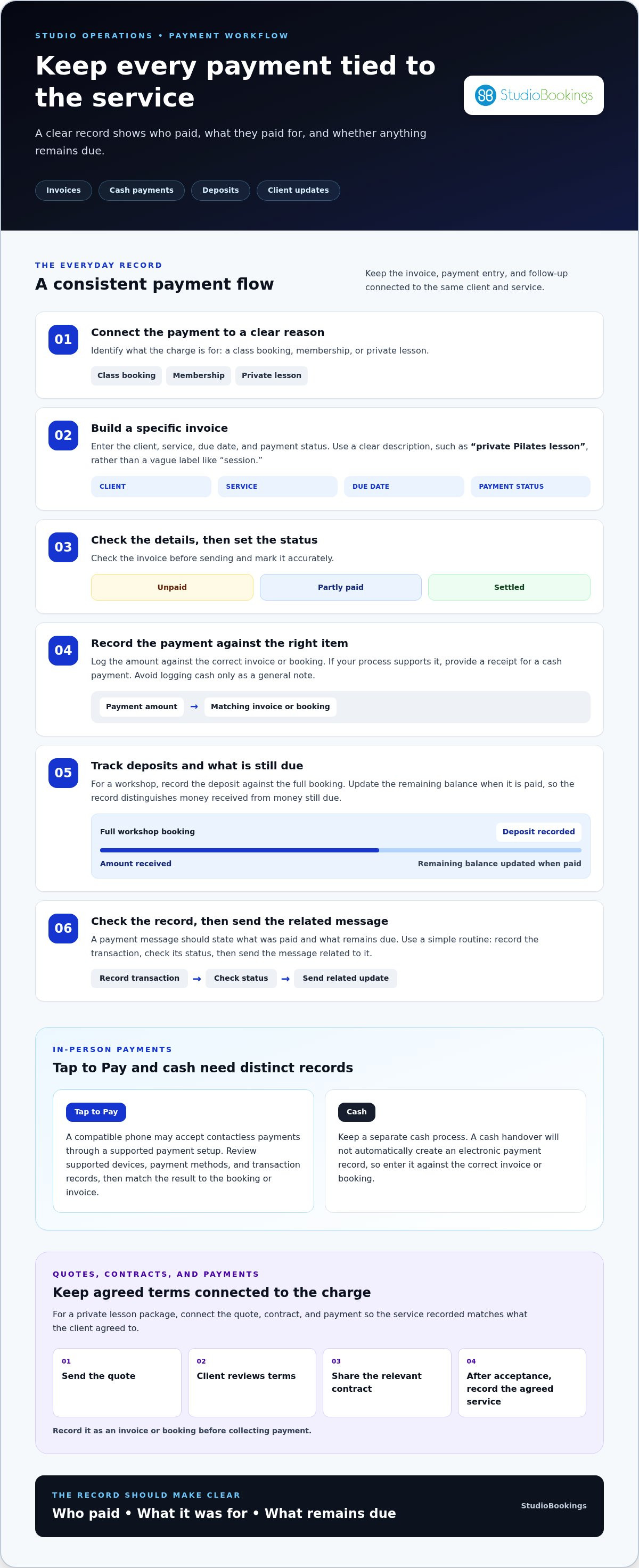
A Studio Management Mobile App can bring payment records into your daily studio workflow. Connect each payment to a clear reason, such as a class booking, membership, or private lesson. Then follow a consistent process for invoices, cash payments, deposits, and follow-up. Every record should make it clear who paid, what they paid for, and whether anything remains due.
For an invoice, enter the client, service, due date, and payment status. Use a clear description such as “private Pilates lesson” rather than a vague label like “session.” Check the details before sending, then mark the invoice unpaid, partly paid, or settled. If a client pays in cash, record the amount against the correct invoice or booking and provide a receipt if your process supports it. Don’t log cash as a general note, which can disconnect the payment from the service.
Keep a clear record of deposits. For a workshop booking, record the deposit against the full booking, then update the remaining balance when it’s paid. This distinguishes money received from money still due. Use consistent names for invoices and payment entries, so searches by client or class return useful results.
For in-person payments, Tap to Pay can let a compatible phone accept contactless payments through a supported payment setup. Before relying on it, review the app’s supported devices, payment methods, and transaction records. After a client taps to pay, match the result to the right booking or invoice. Keep a separate process for cash, since a cash handover won’t automatically create an electronic payment record.
Online quotes, contracts, and payments work best as connected steps. Send a quote for a private lesson package, let the client review the terms, and share the relevant contract before collecting payment. Once the client accepts, record the agreed service as an invoice or booking. This helps prevent mismatches between what the client agreed to and what your studio charges.
Review client booking and payment notifications before sending them. A booking confirmation should identify the session and its time; a payment message should state what was paid and what remains due. Avoid duplicate reminders through email and Google Calendar without a clear purpose. Use a simple routine: record the transaction, check its status, then send the message related to it.
Use each message to move the client relationship forward. A booking confirmation should name the class, date, start time, and cancellation instructions. A welcome email can explain how to book, where to find studio updates, and whom to contact with questions. Give each message one clear purpose, so clients can quickly see what they need to do.
Create reusable email templates for recurring situations, then personalize the details before sending. For example, a trial-class template can include the session name, arrival guidance, and a prompt to reply with access needs. A schedule-change template should explain what changed and what to do next. Check names, dates, and class details before sending, since saved templates can contain outdated information.
Match notifications to the event. Send a booking confirmation after a reservation, then a separate update if the instructor or class time changes. Avoid sending the same alert by email and text without a reason. Keep the tone consistent across channels and make the next action clear, such as “open your booking” or “reply to this email.”
Organize client records around useful, searchable details. A record might include a client’s preferred name, email address, booking history, and communication preferences. Keep notes factual and relevant, such as “prefers morning classes,” rather than subjective. Before sending a group email, segment contacts for a clear reason, such as current members or workshop registrants.
Project cards can track work involving several client touchpoints. For a new-member onboarding card, list the inquiry, introductory session, follow-up, and membership decision as separate steps. Assign an owner to each task and update its status when complete. Staff can then share a clear view of what comes next, without relying on scattered email threads.
Connect client records with scheduling details to make follow-up timely. After a private lesson, record the next session date and any agreed action, such as sending available times. Before sending a class update, compare the recipient list with the current booking roster. This helps avoid notifying clients who aren’t affected.
Build a short communication routine: review upcoming bookings, check messages that need replies, then clear notifications for completed tasks. For example, a front-desk team can scan tomorrow’s schedule and answer outstanding client questions before closing. Track recurring questions, too. If clients repeatedly ask where to find a class link, add it to the confirmation template.
Choose scheduling tools that connect class availability, client bookings, and calendar changes. Studio management software can bring class schedules, appointment bookings, and waitlists into one workflow.
For a private lesson, set the service, instructor, available time slots, and booking rules. Clients should be able to choose an opening without creating a conflicting appointment. Check how the calendar handles cancellations and rescheduling, too. If a teacher’s availability changes, update the appointment and notify the affected client through the same workflow.
Track a prospective client from first inquiry to confirmed booking. For example, record that a new lead asked about beginner yoga, note their preferred class time, then follow up with a booking option. Once they reserve a place, update the lead’s status so staff can distinguish active inquiries from confirmed clients. This makes follow-up more deliberate and helps prevent duplicate outreach.
Class scheduling tools should show the instructor, class type, room, and availability together. If a popular session fills, a waitlist can capture interest and help staff manage openings. Look for a clear process to notify the next person when a space becomes available. Check that schedule changes update the booking view, so clients and staff see the same information.
Build the calendar around your studio’s operations. Add recurring classes first, then enter one-off workshops and private appointments. Check for overlaps between instructors, rooms, and class times before opening bookings. For example, a room assigned to a barre class shouldn’t also appear available for a private session at the same time.
Let booking status guide the next action. An inquiry may need a reply; a reserved place may need confirmation; a cancellation may free a spot for someone waiting. If payment is required before a reservation is complete, make that step clear in the booking flow. Staff can then see which bookings are ready and which need attention.
Before publishing a new schedule, preview it as a client would. Check the class name, instructor, time, location, and booking instructions. Then test a sample reservation and cancellation. This quick review can catch a confusing time slot or missing class detail before it affects real bookings.
Teacher access should make class-day tasks clear without exposing every studio setting. Consider attendance, time tracking, private lesson details, and mobile access together.
For attendance, teachers need to find the right class and mark who arrived. A useful workflow makes it easy to distinguish booked clients from walk-ins or cancellations. For time tracking, define when teachers record a shift and how corrections are handled. For example, a studio manager can review an entry that doesn’t match the teaching schedule before approving payroll records.
Private lessons need a separate view from group classes. Give the instructor the client’s name, appointment time, lesson type, and relevant notes. Limit access to information needed for teaching. A clear record also helps staff see whether a lesson was completed, moved, or cancelled, without searching through message threads.
Teachers may use iPhones or Android phones, so compare operating-system compatibility before adopting an app. Find the app in the Apple App Store or Google Play and review its stated device requirements. Then test a practical task, such as opening today’s class and recording attendance, on the phones your team uses.
Consider whether teachers can access the same essential information on mobile and desktop. A dance instructor arriving between classes may need the roster quickly, while a manager may update schedules on a computer. Test sign-in, navigation, and permissions on each platform your team uses.
App cost should be assessed alongside the management software, not as an isolated download. The price depends on the case and is given after a quote request; cost factors include the selected software, included capabilities, and staff access needs. Compare what each plan includes, especially teacher accounts and mobile use, so you understand the full operating fit.
Support matters when a teacher can’t sign in before class or attendance details look wrong. Review the software’s help resources and support process, then decide how teachers should report issues internally. A simple procedure might ask the instructor to notify the studio manager, who can resolve access or record problems without sharing account credentials.
Before rollout, write a short teacher checklist: sign in, open the assigned class, take attendance, record work time if applicable, and review private lesson details. Test those steps with one instructor, then refine the instructions. Clear access rules help teachers use the app confidently while keeping schedules and client records organized.
Choose software by testing how well it fits your studio’s daily work, not by counting features. Compare mobile access, privacy practices, integrations, and the tasks staff perform most often.
A mobile app gives owners and teachers a convenient way to handle tasks away from a desk. Web-based software can be easier for longer admin tasks, such as reviewing schedules or updating records on a larger screen. The right balance depends on your routine. Try the same task, such as changing a class, in both formats.
Consider who needs access and where they work. An instructor may need a phone for attendance, while a manager may prefer a desktop to review several schedules. Check that both views show consistent information and that staff can complete essential tasks on each.
Are studio management apps secure and compliant with privacy laws? Security depends on the software’s safeguards and how your team uses it, while privacy obligations depend on your location and the personal information you collect. Review access permissions, account controls, data handling, and privacy terms before adding client records.
Use a practical test: give a teacher access to class details, then confirm they can’t see unrelated administrative records. Set a process for removing access when someone leaves. Avoid sharing logins, and use individual accounts where available so access can be managed by role.
Do studio management apps integrate with accounting and calendar software? Some connect with external tools, while others rely on exports or manual updates. Identify the systems your studio already uses, then test how a booking or payment reaches the relevant record. Check that calendar changes don’t create duplicate events.
For example, compare a class booking in the studio calendar with the instructor’s calendar. Then review how payment records reach accounting. A useful integration should reduce repeated entry and keep important details aligned, not create another process to maintain.
Make a short decision checklist before comparing software. Include the tasks that matter most, such as booking a class, updating attendance, sending invoices, and reviewing client records. Use a realistic scenario, like adding a workshop and changing its instructor, to see how many steps the workflow takes.
Consider which information your studio needs to organize. Class descriptions, photography, and client quotes may belong in different systems, so decide which records the management platform must handle and which can stay elsewhere. Focus on handoffs between tools, where duplicate work or missed updates often arise.
Finally, compare support access, staff permissions, and the full workflow alongside the feature list. A clear trial process can help your team test actual tasks before making a decision. Explore studio management software to see how scheduling, payments, and staff management can fit together.
StudioBookings helps yoga studios manage scheduling, memberships, payments, and staff through cloud-based software and a mobile app for owners and members. It’s a natural next step if you want studio operations and mobile access working together. The platform also offers Pilates and Barre Studio Software, Fitness and HIIT Studio Software, and Pole and Dance Studio Software, supporting studios across different disciplines.
Consider it when coordinating bookings, payment administration, and teacher workflows across separate tools is making daily management harder. A free trial lets you explore the platform’s fit for your studio, while no-contract pricing gives you flexibility.
Visit studiobookings.com to explore StudioBookings.
Choose one daily process that needs less friction, then decide how software should support it. A Studio Management Mobile App should fit the way your team teaches, communicates, and runs the studio, rather than adding another disconnected task. Start with the workflow that matters most to your business, then explore how StudioBookings can help bring it together.
StudioBookings offers Yoga Studio Software, Pilates and Barre Studio Software, and Fitness and HIIT Studio Software. Each option connects studio management to the needs of its discipline, helping you find a focused operational fit.
Ready to consider a setup for your studio? Contact StudioBookings about studio management and take the next step at your own pace. A thoughtful choice now can help your team spend less energy coordinating tools and more time supporting clients and classes. You’re in a good position to move forward with clarity.
Choose studio management software with mobile access, then install its app and sign in using your studio account. StudioBookings includes a mobile app for owners and members with every subscription. Owners can manage studio tasks, while members can use booking features. Before inviting your team, decide who needs an owner, staff, or member login so everyone has the right access level.
StudioBookings provides an app for iOS and Android devices, for studio owners and members. The appropriate device depends on the person’s role and preferred way to work. For example, a teacher can use a phone to check class details, while an owner may prefer a computer for broader dashboard tasks. Check the app’s listing and device requirements for the phone or tablet you plan to use.
A studio management app can serve owners, staff, teachers, and members, with different tasks for each group. Owners oversee studio activity, staff help manage operations, and members use booking features. StudioBookings provides separate logins for owners, staff, and clients. In a small yoga studio, the owner can manage the business while members book classes through their own accounts.
A Studio Management Mobile App gives studio owners and members access to management or booking tools on a mobile device. It works alongside the software that organizes studio operations, rather than serving only as a personal calendar. Depending on the platform, users may manage class bookings, memberships, payments, or staff tasks. For example, an owner can review studio activity while a member books a class.
Prioritize features that support your studio’s core workflow: class bookings, waitlists, memberships, payments, staff access, and attendance records. Communication tools such as email alerts or SMS notifications can keep clients informed, while reports help owners review revenue and attendance. Consider online waivers and member profiles, too. A dance studio, for example, may value instructor permissions and class waitlists alongside member booking tools.
The right fit covers the tasks your small team handles without creating extra steps. Compare booking, membership, payment, and staff tools in one workflow, then consider whether owners and members can use the app on their devices. StudioBookings offers software for yoga, Pilates and barre, and fitness and HIIT studios. Try the free trial to see how the workflow suits your studio.
Costs vary by provider and plan, so compare what’s included, how pricing is structured, and whether a contract applies. The platform also offers a 14-day free trial without requiring a credit card. Review the plan terms against your studio’s needs before choosing.
Look for a platform that connects member records with memberships and online payments. StudioBookings supports memberships and payments through Stripe and PayPal, and members can purchase class passes online. If you need formal invoice creation, include that task in your evaluation, since payment processing and membership management aren’t the same as invoicing. Test your billing workflow with a typical membership renewal.